
GEO is a domain-unspecific description of evolution operations for graph databases in general. This enables queries on graph databases without the knowledge of the query language. This advantage of GEO is that ordinary people as well as experts are able to use evolution operations to change their data without having to deal with a domain-specific query language.
GEO file published on Zenodo.
Graph databases consist of nodes and relationships connection them to one another. A node can be imaged as a bubble of a mindmap. Nodes are categorized through labels, that also name them. To define how two nodes are connected relationships are used. These are named by types. Both nodes and relationships can inherit properties, giving further information about them. These can make them individual. -- add pic with student nodes with names
Nodes and relationships are entity types.URI: bolt://localhost:7687
User: neo4j
Term I
As the name implies, the add operation is utilized to add additional information to the database. This includes entity types and features. To add more information to entities already present, you can add features to nodes like labels or properties while relationships can be expanded by properties only.
This shows how your GEO will look like when your add a node entity to your database. The first parameter illustrates that a "add" operation is selected.
add node with label NewLabelFor the first field choose the evolution operation "add" to introduce a new feature or entity type. A node is an entity type, therefore, select entity type for the field "Type". After selecting the type choose "node". The "with" field gives you the option of choosing between a label, that will categorzie your node, and property, which adds additional information to your node. If you want your node to contain a label, type in your label, which will be displayed in GEO at the position of "NewLabel". In case, you want to add a property, you have two input fields that need to be filled out. First enter the name (also known as key). In the second field enter the value.
To add a label, first select the "add" operation at the first position of GEO. Due to labels being categorized as feature, select "feature" for the type field. Now choose the "feature" label. There is the option of adding one or more labels. For more than one label just seperate the desired labels by commas. For example "NewLabel1, NewLabel2" will add both "NewLabel1" and "NewLabel2" to your node. To add one label, type in the name of the desired label. Then define the node you want to add your label(s) to. Therefore, that only nodes have labels, soly the option node will be selectable. Afterwards choose the label of the node to add the "NewLabel(s)" to. This will replace "SelectedLabel". Here only one label can be added.
Besides labels you can also add properties. Choose the "add" operation and feature for the type field because properties are defined as features. Apart from a single property name and its value, adding multiple properties works analogous to multiple labels. Just seperate the keys and values by commas. All keys will be placed in the first text field while all values go in the second field.
Properties can be added to either nodes or relationships, therefore, there are two options to choose from. Option 1 shows how to add properties to nodes by selecting its label. Your text input will replace "SelectType". Option 2 illustrates the adding process for relationships. Here the type of the relationship to add the properties to needs to be defined. Analogous to Option 1, the defined type is shown by "SelectedType".
Rename is only available for features, as they are incorporated by the associated entity type.
All features can be renamed. To rename any feature, the old value as well as the new value have to be defined. For all of these operations chose "rename" as operation from the first drop-down menu.
In order to rename a label, the old label has to be defined as well as the new name you want to rename this feature to. The part "of node with label SelectLabel" will be pre define with the same value specified for the first SelectLabel.
For renaming a type, the start and end node of the desired relationship have to be defined. GEO
To remove entity types such as nodes or relationships or any features like labels or properties from the database, use the delete operation. Note that a type can not be deleted from a relationship because a type is required for a relationship to exist. Nodes on the other hands can exist without any labels.
The GEO above demonstrates how to delete a node entity. Remember that this only works for nodes without relationships. If the node has relationships, use X......... add detach delete....... First select the delete operation. Due to nodes being defined as entity types, chose entity type for the type field. Afterwards, there are to options for the with-field, giving you the possibility to select the node to delete either by a property name or a label. Finally type in the label or property name you want to search for (this will replace: SelectLabel/SelectPropertyName).
There also is the option of deleting relationships. Remember that this only works for nodes without relationships. Again select the delete operation and chose entity type for the type field. Just like before, you can choose between a property name or a type to select which relationship you want to delete. Type in the desired type at SelectType.
Only types can not be removed from the database. This is due to the structure of graph databases, in which a type is required for each relationship.
In contrast to relationships, nodes can have no, one or multiple labels. Consequently one or more labels can be removed from node entities. After the delete operation, select feature for the type field and enter either one or more labels, that should be deleted. In case of removing multiple labels at once, they need to be seperated by commas (LabelToDelete1, LabelToDelete2).
There is the possibility to delete properties for both nodes or relationships. To do so, select the feature property and define the property names or keys to delete. These will replace: PropertyName1, PropertyName2, ... PropertyNameN. In the same manner as before, multiple names are seperated by comma. After defining the property names, select if they belong to either nodes or relationships. Finally type in the label or type to select the desired entities.
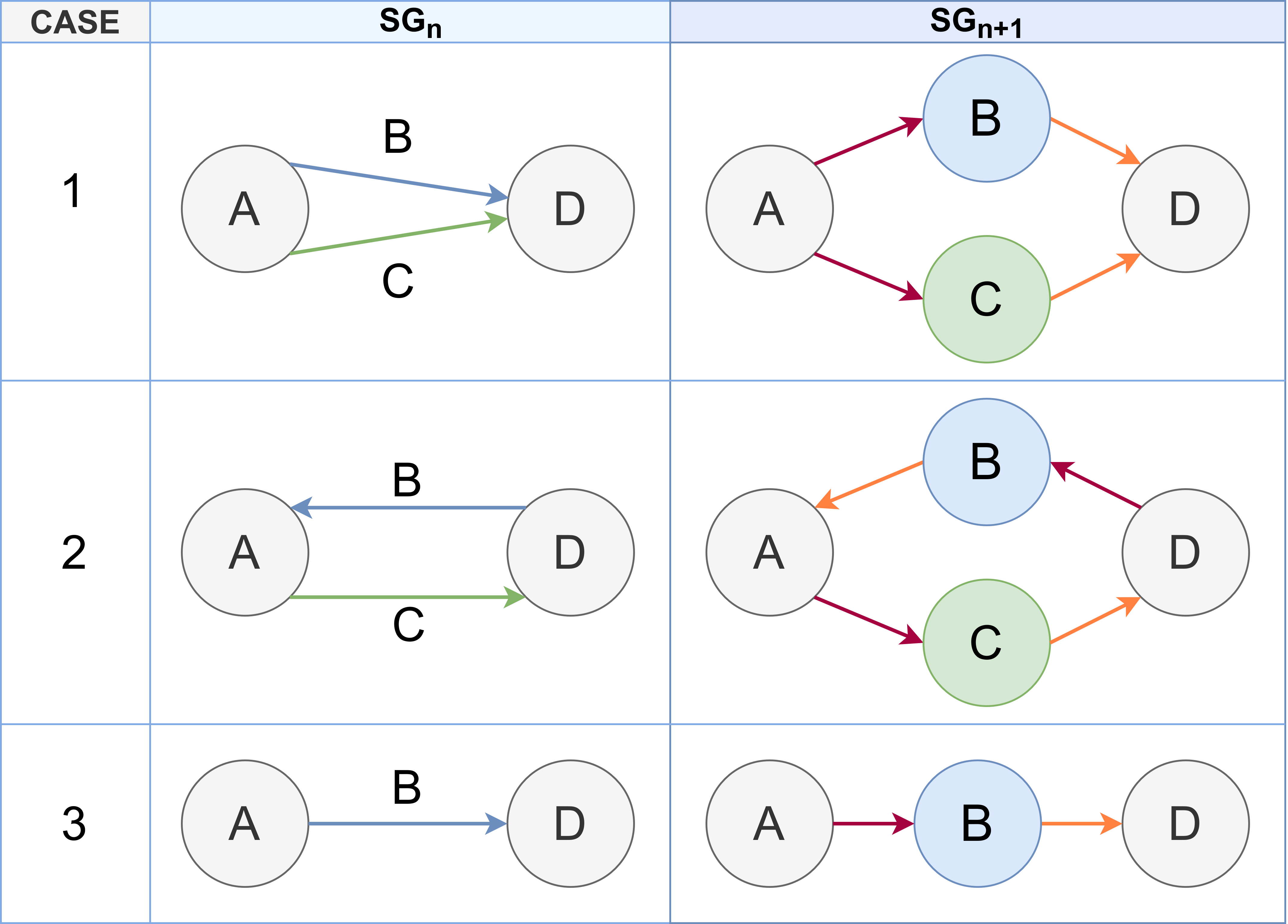
Copy nodes will create duplicates of nodes with a specified label and offers multiple options:
The first option to copy a node with relationships, consequently illustrates a copy of relationships in combination with copying nodes. Copy relationships is not available on its own as we assume that relationships are specified for a specific pattern and therefore, creating a new relationship would be preferred by the user to specify the connection of two nodes.
It is also possible to copy the labels of a selected node to another node with a different label.
copy label SelectLabel to node with label SelectLabelIn contrast to a copy operation, move consists of a copy and a remove operation.
Moving a node is only possible if it is connected to other nodes, otherwise there would be no need to move the node. Consequently, move node can also be seen as the move of a subgraph, consisting of a node and specific relationships. The following GEO shows, how the start nodes of such a pattern can be change/switched.
move node from current node with label label with label SelectLabel to start node with label SelectLabelWhen moving a relationship, it is "extracted" from its old pattern and moved to a new pattern. This indicates that the relationship will become a new end and start node.
move relationship starting at node with label SelectLabel and ending at node with label SelectLabel with type SelectType to start node with label SelectLabel ending at node with label SelectLabelFirst the old pattern has to be specified including the type of the relationship as well as its start and end nodes. Afterward the new pattern, to which the relationship will be moved, has to be defined.
As only relationships have a direction, this operation is only available for relationships. In contrast to move relationship, the relationship is ment to keep its start and end nodes. Merely the start node will be changed to the end node and the end node will become the start node.
move direction of relationship with type SelectType to start node with label SelectLabel ending at node with label SelectLabelTo split entity types such as nodes, the property key to split at is necessary. The property keys will be ordered alphabetically. The operation results in twice as many nodes as there were originally, but with different parts of the property keys and their associated values.
split node with label SelectLabel at SelectPropertyKey